Color Scheme Toggle
This element support being used inside both components & nested components.
Feature comes with it’s own skill for using with Bricks AI Abilities
- Overview
- Accessibility
- Developer
- Support FAQ
Customisable dark/light mode toggle. Seamlessly integrates with Bricks’ color scheme system, respecting user preferences. Choose from a variery of animated presets, custom icons & toggle types
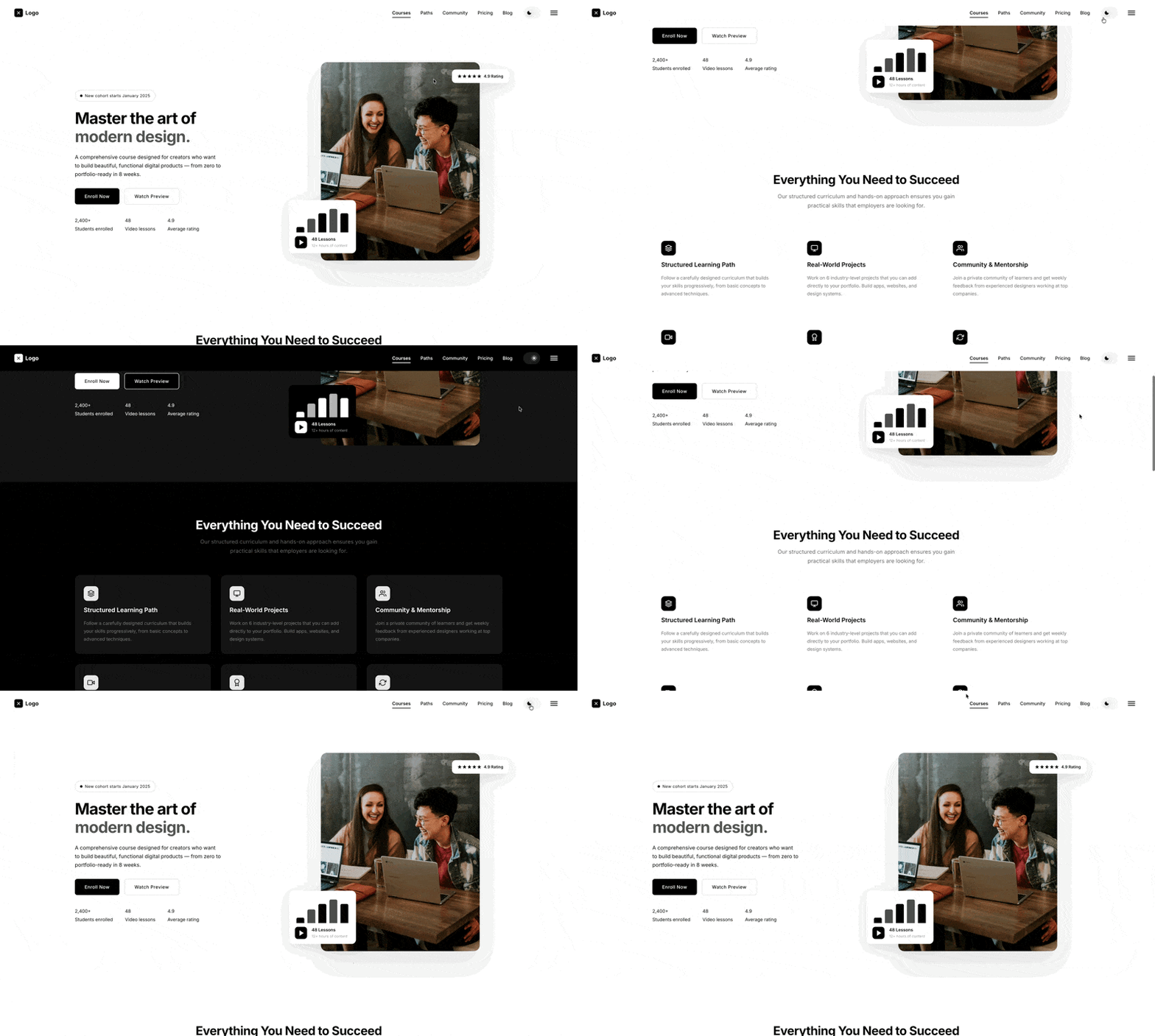
Why a new toggle element?
The native Toggle – Mode works well out of the box as simple button for light/dark mode, but it’s fairly limited.
Some of the main reasons for using an alternative include:
- Better system preference support – For allowing System, Light, and Dark as three selectable options instead of only Light/Dark.
- Flexible UI styles – Use different types of controls depending on the project, such as buttons, dropdowns or toggle switches.
- Animation options – Add transitions between icons or visual feedback when the mode changes. Also includes some customisable CSS morphing animations as available presets.
- View transitions – Smoother transition between dark/light for all changes on the page.
- JavaScript events – Trigger custom events when the mode changes so other components can respond accordingly (for example, some elements on a page may be rendered with JavaScript, such as charts, maps, or other data visualizations. These components may need to update their colors, or switch themes when the site’s color mode changes.
- More visually obvious it’s a toggle – Displaying just a sun icon may not be obvious enough it’s a toggle for switching to dark mode.
Toggle types
Choose from a variety of toggle types to allow users to switch between color scheme.
Single button – One single button that changes icon when clicked. Similar to the native toggle button, but with built-in morphing icons and animating options if replacing with custom icons.

Radio buttons – Individual radio buttons for system (optional), dark and light. Support’s custom icons.

Switch – A toggle switch layout. Allows for including custom icons (and animating between them) or using the built-in morphing icons inside the toggle thumb.

Dropdown – A single icon that opens up a dropdown menu to choose between system (optional), dark or light. The icon in the toggle button will switch between light & dark, with optional animations.

View Transitions
The color mode toggle has a variety of built-in view transitions, allowing for a much smoother effect and ensure everything changes at once (as opposed to being dependant on individual element CSS transitions)
Current available transitions include Fade, Swipe Left/Right/Down/Up, Vertical split, Horizontal split.
Note that View Transitions are created by the browser animating between the static ‘before‘ and ‘after‘ state. This is what allows everything to transform so smoothly at once, but it also means the page is unresponsive while it’s happening and any animations that happen in between won’t be seen. For this reason, a very short duration time is recommended. The default is 0.15s.
Some notes on accessibility..
The Color Scheme Toggle element provides multiple interface types (dropdown, radio buttons, switch, and single button) to control the site’s color scheme. All variants are built with ARIA attributes and keyboard navigation support.
Dropdown
The dropdown variant uses a button trigger with an expandable menu containing theme options. The trigger button includes aria-label that describes the current selected theme and aria-haspopup="true" to indicate it opens a menu. Each option within the dropdown has aria-selected to indicate the currently active theme choice.
| Key | Action |
|---|---|
| Tab | Moves focus to the dropdown trigger button |
| Space/Return | Opens the dropdown menu when closed, or selects the focused option when open |
| Escape | Closes the dropdown menu |
| Up Arrow | When dropdown is open, moves focus to the previous theme option. Wraps from first to last |
| Down Arrow | When dropdown is open, moves focus to the next theme option. Wraps from last to first |
| Home | When dropdown is open, moves focus to the first theme option |
| End | When dropdown is open, moves focus to the last theme option |
Radio Buttons
The radio buttons variant uses a radiogroup role with individual radio buttons for each theme option. Each button includes aria-checked to indicate its state and aria-label describing the theme option. The group is navigable using arrow keys following standard radio button patterns.
| Key | Action |
|---|---|
| Tab | Moves focus into the radio group (to the checked radio button) |
| Left/Up Arrow | Moves focus to and selects the previous radio button. Wraps from first to last |
| Right/Down Arrow | Moves focus to and selects the next radio button. Wraps from last to first |
Toggle Switch
The switch variant uses a button with role="switch" and aria-checked to indicate the current theme state. The aria-label dynamically updates to reflect the current theme. This variant toggles between light and dark themes, automatically set to the user’s system preference if that is set in Bricks settings.
| Key | Action |
|---|---|
| Tab | Moves focus to the switch button |
| Space/Return | Toggles between light and dark themes |
Single Button
The single button variant uses a simple button with aria-label that describes the current theme and action. Like the switch, it toggles between light and dark themes with aria-checked indicating the current state.
| Key | Action |
|---|---|
| Tab | Moves focus to the toggle button |
| Space/Return | Toggles between light and dark themes |
Dynamic Labels
Toggle types support custom aria-label templates with a {x_color_scheme} placeholder that gets replaced with the current theme name (Light, Dark, or System). This ensures screen readers can announce the current state and available action.
Theme Persistence
The selected theme preference is stored in localStorage as brx_mode and persists across page loads. The element automatically syncs with Bricks’ native color mode system, ensuring consistency throughout the site.
Icon Animations
When using animated icons (rotate, flip, slide, fade), animations are purely visual enhancements and do not affect the accessibility or keyboard interaction. All state changes are announced through ARIA attributes regardless of animation choice.
JS Events
From BricksExtras v1.6.9+, the x-color-scheme-change event will trigger as user changes color scheme for your site.
Internally, any BricksExtras elements that need to update to take into account new color changes (for example the dynamic chart element, which doesn’t use CSS for colors), will automatically update the colors when the color scheme is switched.
If you have other things on your page that would benefit from updating on a color scheme change, you can use this event to listen for the color scheme change.
For example, maybe you have a featured map which ideally would switch to darker theme/tiles for dark mode. Or some type of graphics created with JS, where the colors need updating, you can use the x-color-scheme-change event to trigger this in your JS
document.addEventListener('x-color-scheme-change', () => {
  // your code here to update
})