Media Playlist
This element is nestable, allowing for any Bricks elements to be added inside.
This element can be used inside query loops.
This element supports being used inside AJAX filtered content, either by Bricks’ native filter elements, WPGridbuilder, JetSmartFilters or PiotnetGrid
This element has it’s own interaction settings. Refer the interactions tab below for the list of element-specific triggers and/or actions.
This element support being used inside both components & nested components.
- General
- Interactions
- Support FAQ
This nestable element is designed for use with the Media Player element, to build your own custom playlists that can be loaded into a player. Ideal for situations where you want to give the reader easy access/ability to watch a number of different videos (or audio), but don’t want to clutter up with page with multiple players.

Feature Highlights
- Supports being used with facet plugins to create searchable/filterable playlists.
- Nestable element, no limitation on layout/design.
- Auto-find player with the current section or component instance. (or choose a particular media player)
- The player will inherit the poster image as set in the playlist.
- Dynamic attributes added for adding custom styling when the playlist item is currently active/playing/paused/ended
- Interaction trigger settings for when the playlist item is currently active/playing/paused/ended.
How it works
For maximum flexibility, instead of the entire playlist being fixed inside one element, each element is a control that communicates with the nearest media player. It’s a button that, when pressed, will load the next media into the player along with any attached data (poster image, title, chapters, subtitles).
Note that the playlist element isn’t for playing the media, it’s for loading the new media into the existing player.
You can use a query loop to build an entire playlist based on dynamic data by looping the items, and then customise the layout freely (no different to building a list of posts). As the user browses the playlist & clicks the items, it will load the media into the player to match the currently selected item.
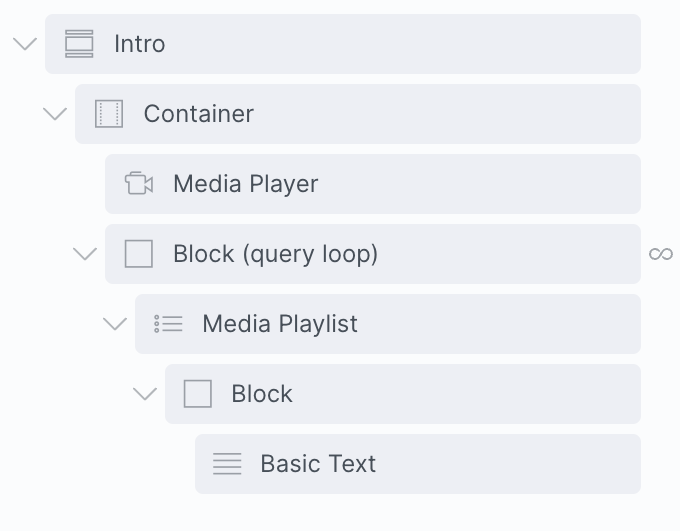
Adding a playlist to a Player
Usually with the media player, you’d add the video URL or audio URL, and set things up inside the player. If using a playlist, you just set the media player to either ‘audio’ or ‘video’ and then set to ‘playlist mode’. You then add the URLs and any extra media data instead to your playlist items, rather than to the player.
The data that is sent from the current playlist item to the player is..
- Source URL – Populates the video/audio src
- Title – Displayed in the player via the title control
- Poster Image – Displayed in the player via the poster image control (or as the full size poster image for videos)
- Chapters – Displays in the player via the chapter menu control
- Text Tracks – Populates the text tracks for captions etc.
When the page loads, the player will load up the content from the first item in the list and then change as the user selects new items. You’d still set up the behaviours and any styling inside the player, but all the data would stored inside the playlist. The user will control playback via the player, and loading in new media via the playlist element.
Note that ‘Element Interactions’ must be enabled in BricksExtras > Misc settings.
This element adds new triggers to Bricks’ interactions options, so you can trigger actions based on the state of the element.
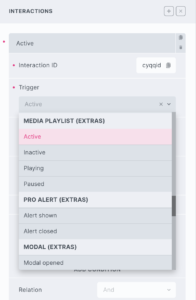
Triggers
Active – Triggered the moment the current item’s media has been added to the player.
Inactive – Triggered when the current item’s media is no longer active in the player
Playing – Triggered when the current item’s media is currently playing in the player
Paused – Triggered when the current item’s media is still active in the player, but the player isn’t currently playing.
Ended – Triggered the moment the current media ends.
…