Favorites / Wishlist
This element is nestable, allowing for any Bricks elements to be added inside.
This element can be used inside query loops.
This element supports being used inside AJAX filtered content, either by Bricks’ native filter elements, WPGridbuilder, JetSmartFilters or PiotnetGrid
This element has it’s own interaction settings. Refer the interactions tab below for the list of element-specific triggers and/or actions.
This element support being used inside both components & nested components.
- General
- Accessibility
- Interactions
- Developer
- Support FAQ
Allow site users to favorite posts and/or add products to a private wishlist. Supports use with SureCart & WooCommerce products & any other post types. Query loops can then be used to output the users’ chosen items for each post type.
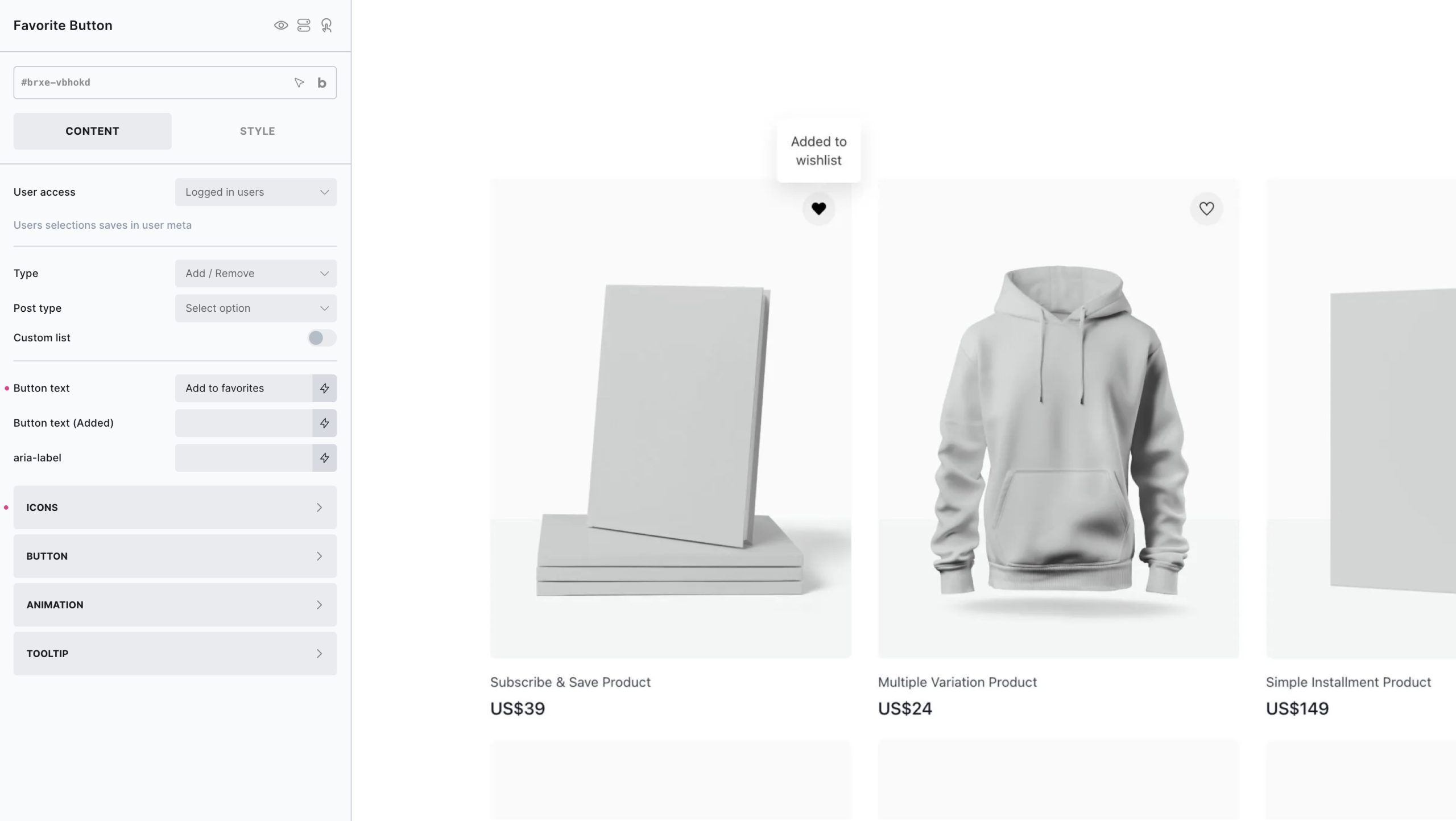
Common Use Cases
- Users creating a shopping wishlist of products to come back to purchase.
- Users creating a ‘Favorite’ blog posts list.
- Users building a ‘Watch Later’ list for videos posts.
- Users saving their favorite recipes.
Overview
Favorite Button
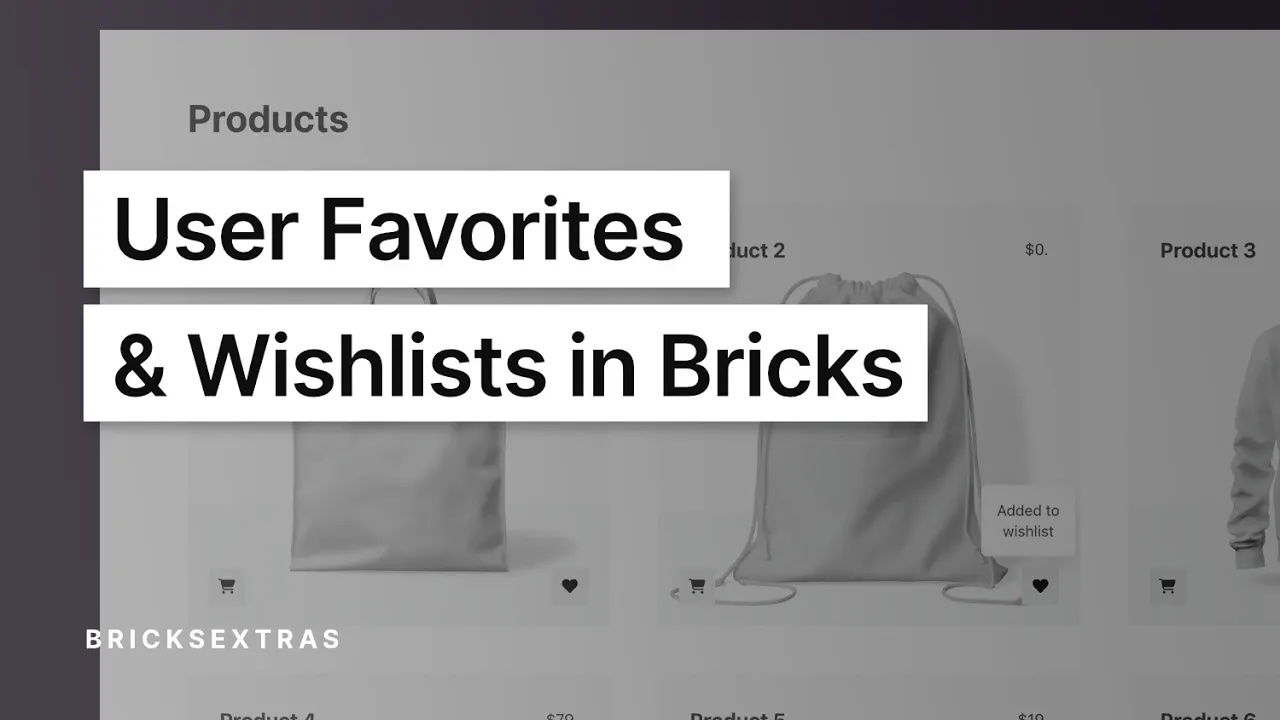
The nestable Favorite Button element handles all the functionality and can be used for four different behaviors..
- Adding/removing current post/product from users’ favorites (from the current post being viewed or inside of a query loop).
- Clear a specific item from the list (when used inside the user’s list).
- Clear a list completely.
- Display a count of the number of posts in the chosen list.
Note – not to be confused with a ‘like’ or ‘thumbs up’ type button. This is specifically for allowing users to save posts to their own saved favorites list.
Access
By default the functionality is only available to site members when logged in, the buttons are automatically disabled for logged out users. The data (only the post ids for each list created) is stored in the user’s meta data for each time the user returns.
If you wish to allow logged out users to start to create their own lists before logging in, you can choose the ‘allow all’ option in the access setting. This will make the wishlist buttons active for all users, whether logged in or out. In this case, for logged out users they will be storing their choices as a 7 day cookie. After logging in, the data is then stored in the user’s meta data instead. (no cookies are added unless the user actually uses the button/feature)
(our recommendation is to encourage users to login to use this type of feature, as then they can visit the site from any device/browser and see their saved posts).
Favorites Query Loop
The Favorite Button element is for adding/removing items from a user’s list. But you’ll also need to display that list somewhere, which can be done using the Favorites Query Loop.
Simply set a query loop to ‘Favorites’ and then output your posts or products like you would any standard query loop. In the image below, we’re using the nestable table element to output the users product selection.

To allow the user to remove items while viewing the list, use the Favorite Button element inside of the loop and set the behavior to ‘Clear item from list’. Clicking that button with then remove that specific item from the list.
Note – If you’re allowing logged-out users to create lists – be mindful of caching. Similar to a checkout page, the ‘dashboard page’ containing the unique lists for each user will need to be excluded from page caching. (if you’re including in Bricks’ AJAX popup this won’t be needed as the content will be dynamically fetched as the popup content is fetched – https://support.bricksextras.com/recordings/ima2KV8DOxCMNKWpafJ5)
Tooltips
Tooltips can be added to the buttons to help with visual feedback for when the user interacts with the element. The tooltip content can be changed based on whether an item has been added, or removed, or if the button is disabled.
The usual tooltip settings are available for lots of behavior & style customization.
Creating Multiple Lists Per Post Type
By default, the user will be saving the posts to their favorites list for each post type (as seen in the video).
If you need to create a second list for the same post type. You can do so by enabling ‘custom list’ underneath the Post Type option and giving your new list an identifier (an identifier being the name for your list, containing only letters, numbers & underscores)
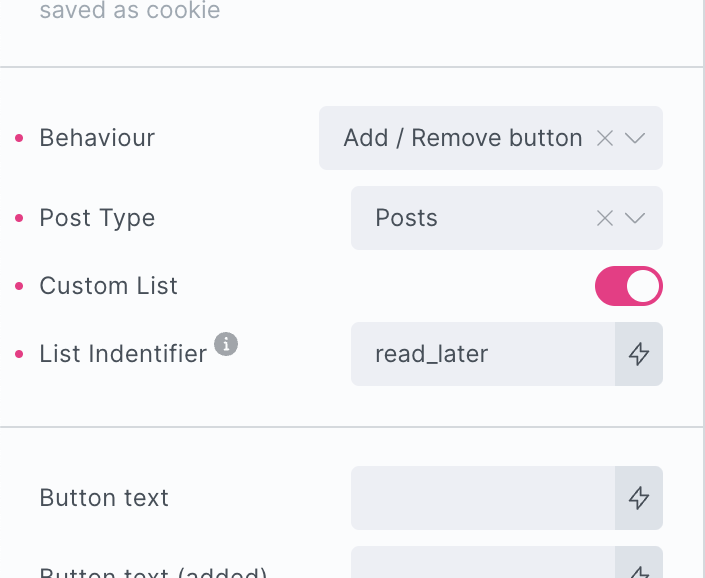
This button will then save the post to a new custom list for that post type, in this case ‘read_later’.
To output this new list in a favorites query loop, simply type in the same list identifier in the favorite query loop options.
Max. number of posts in list
If creating a custom list, you may also want to limit the number of posts that can be saved to that list. For example, if you’re allowing the user to save to a ‘comparison list’ where some product features will be listed to be compared, and you want to only allow x number of products for your layout.
In this case, add a value for the Max. number of posts in list setting. When the user hits the maximum, they will be unable to add any more posts until that list until a post is first removed. Both the button text and the tooltip text has the option to inform the user if they’ve reached the maximum.
Dynamic Tags
There are three dynamic tags added with the favorites feature, all for different use cases..
x_favorite_count:$list – Favorite count (display) – If you want to display the count of a list outside of the favorite button element. For example, within some text.
x_favorite_count_number:$list – Favorite count (number) – If you want to use the count in an element condition, use this dynamic tag. For example, show an element if the count is over a specific number.
x_favorite_ids:$list – Favorite IDs – Will output all the saved post IDs as an array (not for displaying, but is useful if wanting to use inside of a custom WP_Query, and want to use the saved values. See as example in the developer docs.)
From BricksExtras v1.5.4, the count of multiple lists can be added together by simply including the additional list names as the filter at the end of the dynamic tags. Example.. x_favorite_count:post:product would show the total count of all favorites within those post and product lists.
Some notes on the built-in accessibility..
- Each element comes with a button inside. This is a <button> element and so is focusable and can be pressed via keyboard (Space or return key)
- aria-pressed is true when the favorites button has been pressed
- aria-expanded is true when/if a popover is added and is open.
If nesting elements inside, be mindful that you’re placing them inside of a button element. So no links, h1-h6s etc.
Note that ‘Element Interactions’ must be enabled in BricksExtras > Misc settings.
This element adds new triggers to Bricks’ interactions options, so you can trigger actions based on the state of the element.
Triggers
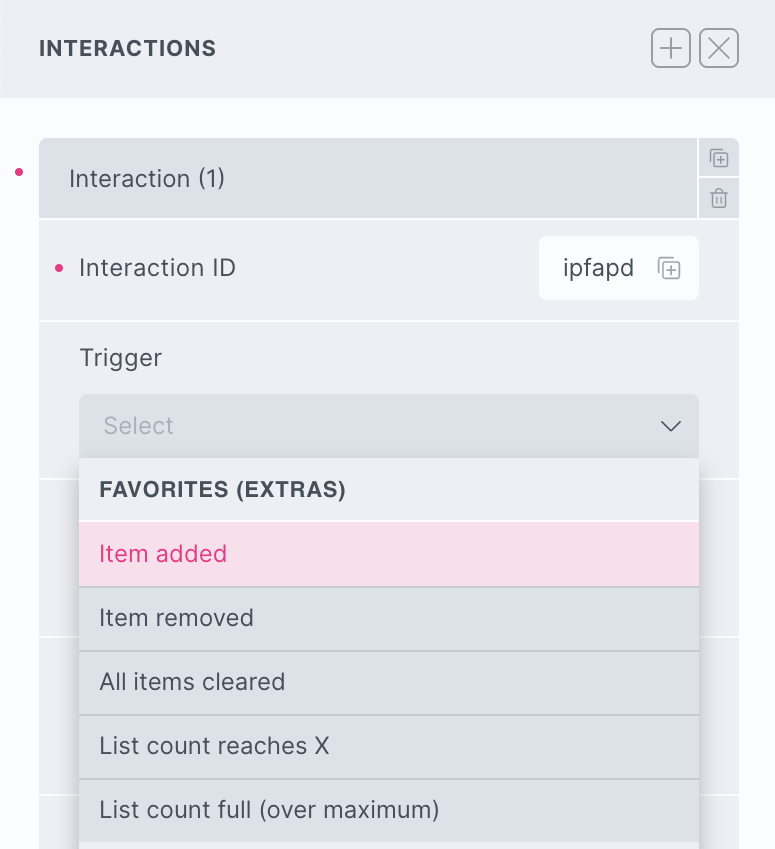
Item added– triggered the moment the item has been successfully added
Item removed– triggered the moment the item has been successfully removed
All items cleared– triggered the moment all items have been successfully removed
List count reaches X– triggered the moment the list count reaches the specified number
List count full (over maximum)– triggered if the user tries to add another post to the list once the maximum has been reached.
Options
Delay – How long to wait after the event until the chosen action takes place .
The Favorite button element triggers a number of JS events after successfully adding/removing items on the users’ list
‘x_favorite:added’
‘x_favorite:removed’
‘x_favorite:cleared’
‘x_favorite:maximum-reached’
Sample code:
const myFavoriteButton = document.getElementById('brxe-skbff');

myFavoriteButton.addEventListener("x_favorite:added", () => {
 // do something here when item added
});

myFavoriteButton.addEventListener("x_favorite:removed", () => {
 // do something here when item removed
});

myFavoriteButton.addEventListener("x_favorite:cleared", () => {
 // do something here when whole list cleared
});

myFavoriteButton.addEventListener("x_favorite:maximum-reached", () => {
 // do something here when user tried to add to list after maximum reached
});
You can also just add one event listener to the window and pick up which post ID and which post type (or custom list) was added/removed.
window.addEventListener("x_favorite:added", (e) => {

     /* get the post ID and post Type of the post that was added */
     console.log(e.detail.postType)
     console.log(e.detail.postID)
});

window.addEventListener("x_favorite:removed", (e) => {

     /* get the post ID and post Type of the post that was removed */
     console.log(e.detail.postType)
     console.log(e.detail.postID)
});
Cookies
If enabling the feature for logged out users, cookies will need to be saved in the browser to store the selected posts for that user. By default, the cookie expiry is set at 7 days, but this can be changed with the following PHP code snippet..
<?php /* change the number of days to store cookie to 28 */
add_filter('bricksextras/favorite/expiry', function() {
   return 28;
});
If you wish to enable the ability for the user to save favorites with cookies conditionally, you can do so programmatically with JS. (for example only after a user has clicked to enable)
/* enable all favorite buttons and allow cookie use */
xAllowFavorite()

/* disable all favorite buttons and delete favorite cookies */
xDisAllowFavorite()
Get the IDs of a current users’ list
If you need to get the an array of the users list for custom use, there’s a helper PHP function, bricksextras_user_favorites( $list );
$list will be the post type slug, or if using a custom list then it’ll be the post type, double underscore, and then the list indentifier.
<?php
/* array of post IDs from the user's list with post type as 'post' */
$users_post_favorites = bricksextras_user_favorites( 'post' );

/* array of post IDs from the user's list with post type as 'product' and list identifier as 'wishlist' */
$users_product_wishlist = bricksextras_user_favorites( 'product__wishlist' );
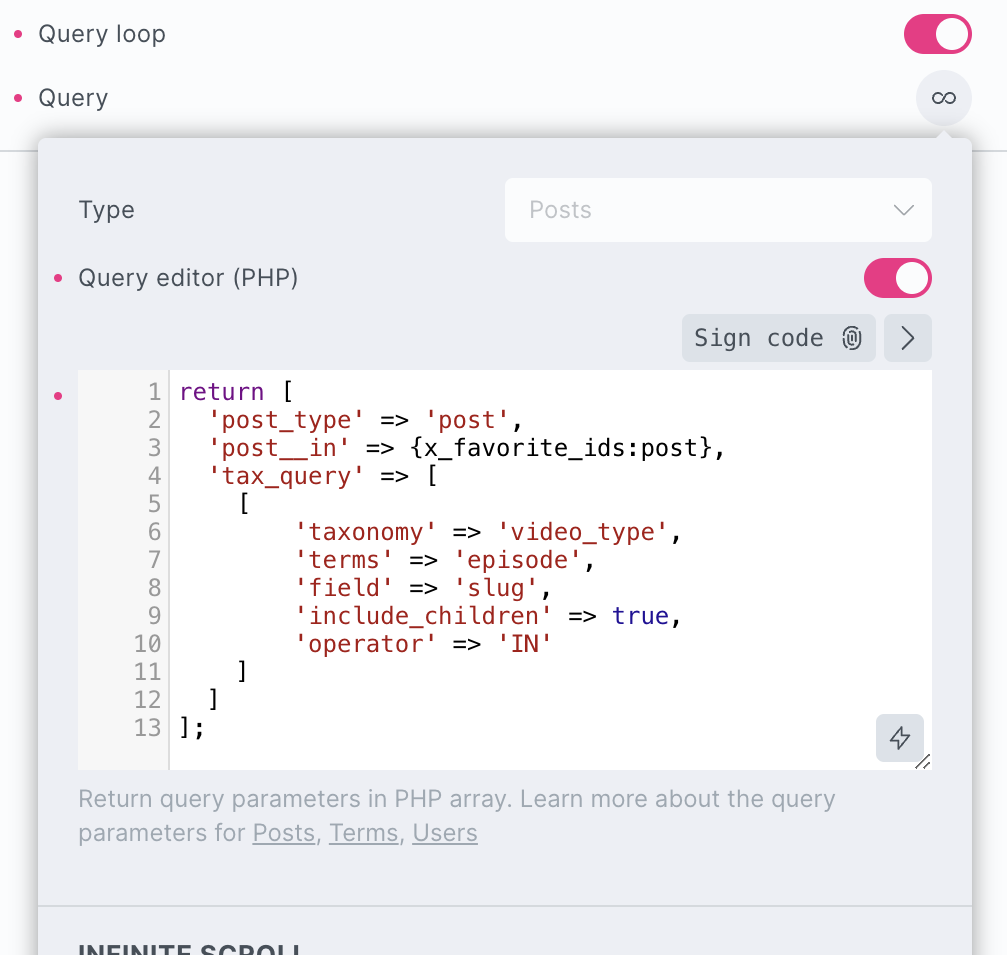
It’s also possible to get these values using the dynamic tag x_favorite_ids:$list. For example if you needed the post IDs from a list as part of custom query.