Image Hotspot Marker
This element is nestable, allowing for any Bricks elements to be added inside.
This element can be used inside query loops.
This element supports being used inside AJAX filtered content, either by Bricks’ native filter elements, WPGridbuilder, JetSmartFilters or PiotnetGrid
This element support being used inside both components & nested components.
Feature comes with it’s own skills for using with Bricks AI Abilities [coming soon]
- Overview
- Accessibility
- Developer
A nestable marker element that pairs with the Image Hotspots element (when set to ‘Nested Hotspots’ mode) to create individual hotspots on images.
Unlike the built-in repeater approach, nested markers can be used inside query loops and work seamlessly with Bricks filter elements, allowing you to create dynamic, filterable hotspots.
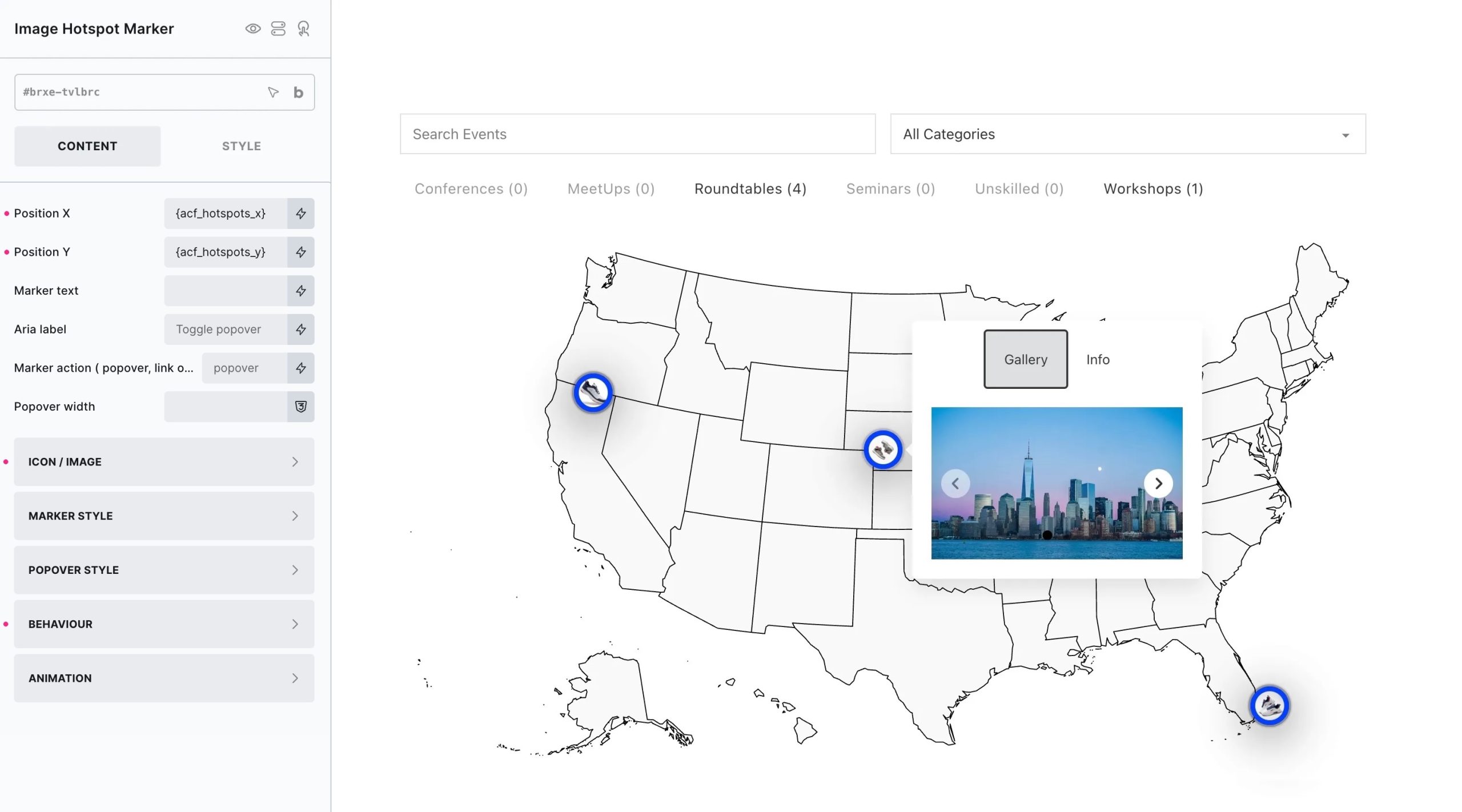
Using with Query Loops & Filters
Simple wrap the hotspot marker in a div/block with a query loop. Use dynamic tags for the horizontal and vertical positioning, and nest in any element with dynamic tags to add your dynamic data from the loop.
The loop will populate the image with all the markers.
If using Bricks’ filter elements to filter the query loop, the marker elements are designed to re-initialise automatically as the filters are used.
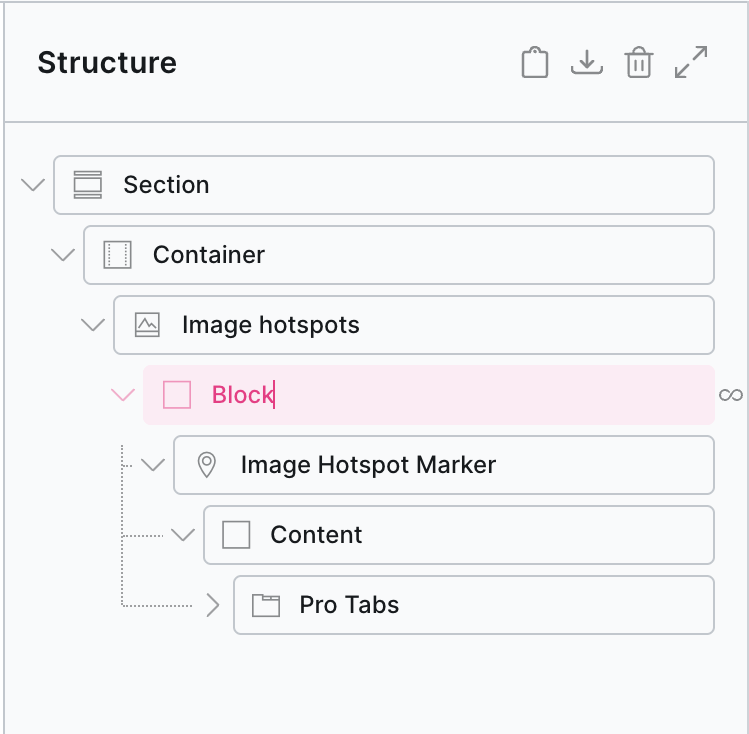
Adding content inside each popover
Unlike the hotspots built into the image hotspots element, the image hotspots Marker element is nestable. Any elements added inside will appear inside the popover that appears when the user interacts with the marker.
Settings
Note that many of the customisation settings are similar to those found in the parent Image Hotspots.
Position X / Position Y – Set the position of the individual marker on the image. (use percentages so it’s always relative to the total image height/width)
Marker text – Optional text to go inside the marker button/link itself. (empty by default)
Marker action – Choose the action when the user clicks the marker ( popover, link or both ).
- Popover – the default which will show the content in a popover.
- Link – will set the marker to be a link instead of a button, where you can set up the link options.
- Both – will still set the marker to be a link, but the link itself has a popover that will reveal on hover.
Image / Icon – Choose to populate each marker with either an icon (default) or a custom image.
The following can all be left blank, and the markers will automatically pick up the global setting as set on the parent Image Hotspots element. Or you can change them specifically for one particular marker (or use dynamic data if in a loop)
Marker / Popover Styles – Style the marker button and also the popovers.
Behaviour – Preferred placement (which direction the popover will attempt to pop out if there’s room), user interactions, skidding etc.
Animation – Both the animation in and out can be controlled per marker if required.
Custom Close Button
If you wish to allow the user to close the popover with a custom close button – add in any element for the icon/button and add the custom attribute data-x-close. When clicked, it will close that popup. (Note that clicking anywhere outside of the popover or pressing ESC will also close it)
Some notes on the built-in accessibility..
- Each popover comes with a button as the default toggle to open it. This is a <button> element and so is focusable and can be pressed via keyboard (Space or return key)
- Buttons/links/inputs found in inside the popover will always be the next focusable element after the button, making it easy to access once the popover is open.
- As the button default is just an icon, there’s an aria-label with the default value ‘Toggle popover’, which can be customised from the settings. (also text can be added inside the button)
Keyboard Interaction
| Key | Action |
|---|---|
| Space/Return | When the focus is on the button, will open the corresponding popover. |
| Tab | Moves focus to the next focusable element. The buttons will be focusable. If the popover is open, the next focusable element will be found inside of the popover content |
| ESC | Close any open popovers on the page |
The markers in this element are using Tippy.js, which comes with lots of built-in methods allowing you to control things programmatically, you just need access to the instance.
Find the identifier from the data-x-id attribute on each marker. For example, if the marker has the attribute data-x-id="ixqrsu", to get the instance, you can do so like this:
const instance = xHotspots.Instances.ixqrsuThen the popover can be controlled using the Tippy API. For ex.:
// Force the popover to close
instance.close();

// Add new content
instance.setContent('New content')