

A common challenge when using Bricks’ filter elements is that on mobile, having many filters can take up valuable screen space above the results. One solution is to tuck them inside an offcanvas that mobile users can then open on demand. Unfortunately, duplicating Bricks’ filter elements for both desktop and mobile can cause issues. Here’s one way to solve..
Overview
Instead of adding another set of filters for mobile, we can move the existing ones into an offcanvas based on a media query. Since we’re using the Pro Offcanvas element, we can then close the offcanvas when the content been filtered via Interactions.

With this being a custom behaviour for moving elements, this would be JS territory and so requires a code snippet for the last part (Bricks or BricksExtras has no built-in method for moving content in the structure)
Steps
Before you start, you’ll need a query loop with Bricks filter elements already set up and working – this tutorial assumes that’s already in place. Decide the breakpoint at which the filters will switch to the offcanvas, we’ll assume 768px.
1. Wrap your filter elements & hide on mobile
In Bricks, place all your filter elements inside a single block. Note the element ID for later (e.g. #brxe-jyisnl) or add a custom class (.my-filter-block)
Hide this div with display:none below the chosen breakpoint (768px), so it’s not visible by default on mobile.

2. Add a Pro Offcanvas & trigger
Add a Pro Offcanvas to your page for mobile use & add a burger trigger or custom button to open it. Hide the trigger for the screen sizes above where you need it to be visible with display:none.
Add any content inside the offcanvas. The filter elements will be added after any existing offcanvas content.

3. Set up an interaction to close the OffCanvas when Bricks’ filters are used
On the Pro Offcanvas element, set an interaction with..
- Trigger – Query AJAX loader End (we’re listening for the AJAX to end on the filters)
- Query – Choose the query loop element being filtered
- Action – Javascript function (so we can use the bricksextras.offcanvas.close)
- Target – Self (because we’re targeting the same offcanvas element that we’re adding the interaction to)
- Arguments – %brx% (always required as first argument when using Bricks’ JavaScript function action)
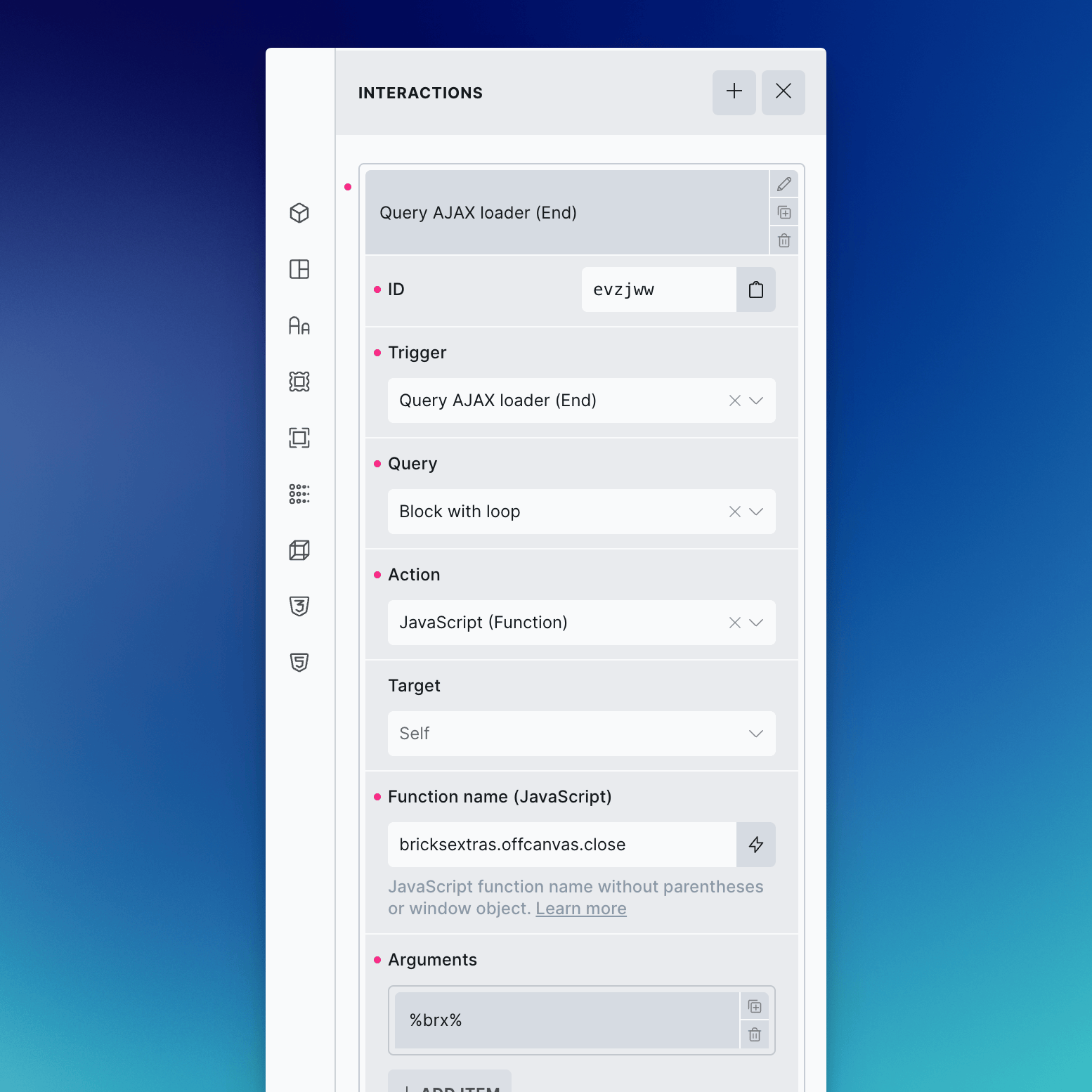
That’s it. Now, anytime the filters are used, the offcanvas will be closed automatically if open.
4. Moving the filter block
The last step is where we need a code snippet, as there’s no built-in method for moving elements in the structure in Bricks. Copy the following code into page settings > custom code > footer scripts.
Replace the first three variable values with your own, the selector of your filter block, the selector of your offcanvas element and the breakpoint where you wish for the filters to be moved.
<script>
document.addEventListener( 'DOMContentLoaded', function() {

    const filterContainer   = '.my-filter-block';
    const offcanvasSelector = '.my-offcanvas';
    const breakpoint        = 768;

    const filter          = document.querySelector( filterContainer );
    const offcanvasTarget = document.querySelector( offcanvasSelector + ' .x-offcanvas_inner' );

    if ( ! filter || ! offcanvasTarget ) return;

    const originalParent  = filter.parentNode;
    const originalSibling = filter.nextSibling;
    const mq              = window.matchMedia( '(max-width: ' + breakpoint + 'px)' );

    const move = ( e ) => {
        if ( e.matches ) {
            offcanvasTarget.appendChild( filter );
            filter.style.display = 'flex';
        } else {
            originalParent.insertBefore( filter, originalSibling );
            filter.style.display = '';
            const wrapper = offcanvasTarget.closest( '.x-offcanvas' );
            if ( wrapper && typeof xCloseOffCanvas === 'function' ) {
                xCloseOffCanvas( wrapper.id );
            }
        }
    };

    mq.addEventListener( 'change', move );
    move( mq );

});
</script>
That’s it. The block containing the filters will now be moved inside the offcanvas (below any other content in there) when viewing below your chosen breakpoint and will remain in their original position otherwise.
Note that the content won’t be moved when viewing inside of the builder.